By Robin Singhvi · Founder, SmartCue · Updated April 29, 2026
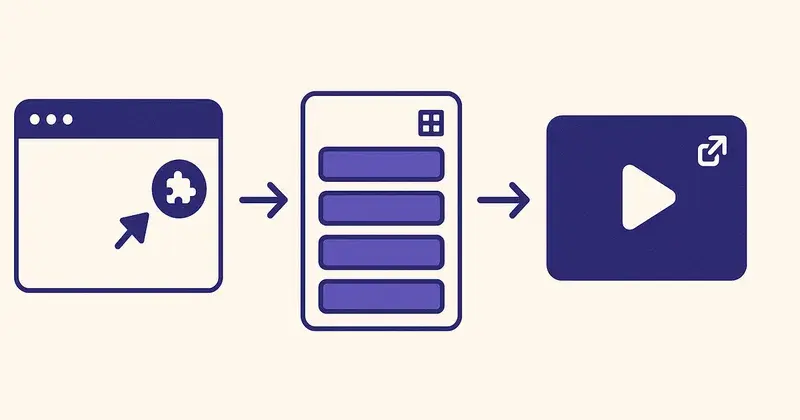
The median demo on SmartCue has about 12 steps and takes about 6 minutes of editing time after the initial capture. That's not a marketing claim. It's the math of the median demo's actual step count, multiplied by the actual editing time per step in the no-code editor. Verify with a stopwatch the first time you build one.
This post is the build instructions. Step-by-step, opinions included, no fluff. By the end you'll have a published, shareable interactive demo of your product live on the internet.
If you want the architecture before the build instructions, What Is an Interactive Demo? is the conceptual primer. If you want the operational rollout for a whole team, the Demo Automation Playbook is the 90-day guide. This post is the single-demo build for one person on one screen in one afternoon.
Before you start: the four-decision pre-flight
Don't open the editor until these four decisions are made. Skipping them is the #1 reason first-time builds take three hours instead of six minutes.
- What's the demo's job? One sentence. "Show new visitors what SmartCue does in 60 seconds before they decide to keep evaluating." If you can't write that sentence, the demo will drift.
- Who's the audience? One persona. Director of Marketing. Founder. Sales Ops Lead. Pick the most-likely visitor on the surface where this demo will live.
- What's the surface? Where does this demo go live? Homepage hero. Cold-email follow-up. /pricing page. The surface determines length and format.
- What's the success metric? What number does the demo move? Demo views. Lead-gate completions. Trial signups. Meeting bookings. Pick one.
Write these on a sticky note. Keep it visible while you build. The first three lines of the demo's caption copy come straight from those four decisions.
Step 1 — Sign up and install the Chrome extension (1 minute)
Go to app.getsmartcue.com. Sign up with email and password. No credit card required. The free tier is fully functional — you can publish production demos on it.
Once signed in, the dashboard prompts you to install the SmartCue Chrome extension. Install it from the Chrome Web Store. You'll see the SmartCue icon in your browser toolbar.
That's the entire setup. No SDK. No code snippet. No engineering involvement.
Step 2 — Plan the capture (2 minutes)
Open the product you want to demo in a new Chrome tab. Walk through the flow you'll record once, mentally — without clicking the SmartCue extension yet.
The pre-walkthrough matters because every click you make during capture becomes a step in the demo. Stray clicks (closing a notification, opening a wrong menu) all become steps you'll have to delete in editing. A mental dry-run of the path saves 5-10 minutes of editing later.
For the median demo, you're aiming for 12 captured clicks. Map them out:
- Click 1-2: where you start, what context you set
- Click 3-8: the core feature interaction
- Click 9-12: the outcome / payoff
If the path takes 25 clicks, the demo will be too long. If it takes 5 clicks, it might be too thin. Adjust the path before you start capturing.
Step 3 — Capture the demo (90 seconds)
Click the SmartCue extension icon. Hit "Start Capture." A red border around the browser window indicates capture is live.
Walk through the planned flow. Click the way a real user would. Don't narrate; SmartCue captures the visual flow, not your voice (voiceover comes later in editing). Don't pause between steps; the timing of capture doesn't affect the timing of the published demo.
When you've finished the flow, click the SmartCue extension icon again and hit "End Capture." The capture stream auto-uploads. The editor opens with every step queued up in order.

Step 4 — Edit the steps (3-4 minutes)
This is where the median demo's 6 minutes of edit time gets spent. The editor opens with three panels:
- Left: the steps panel, listing every captured click in order
- Center: the active step's screenshot with editable hotspots and captions
- Right: the configuration panel for highlights, timing, and transitions
Standard editing pass:
- Reorder if needed. Drag steps in the left panel to fix any out-of-order captures. Median demo has zero reorders; sometimes you'll need 1-2.
- Delete strays. Any clicks that aren't part of the demo (closing a notification, accidental tabs) — delete from the left panel.
- Add captions. For each step, write a one-line caption explaining the why, not the what. "Click the Export button" is bad caption (the screenshot already shows that). "Export the report as a PDF, ready to send to your CFO" is good caption.
- Add highlights. Use the highlight tool to draw attention to the specific UI element the viewer should notice. One highlight per step max — multiple highlights split attention.
- Set the AI voiceover (optional). Pick a voice from the dropdown. Generate. Listen to a preview. Re-generate if it's off. Most teams skip voiceover on the first build and add it in revision.
Time per step: 15-20 seconds for the standard pass, 30-45 seconds if you're adding voiceover. Twelve-step demo = 3-6 minutes of editor time. Add 30 seconds for review. About 6 minutes total, hence the homepage claim.
Step 5 — Personalize (optional, 60 seconds)
If the demo needs to serve multiple personas or funnel stages, set up variants now. The personalization tab in the editor lets you:
- Define personas (Director of Marketing, VP of Sales Ops, etc.)
- Override specific captions per persona
- Override specific CTAs per persona
- Route viewers to variants via URL parameters or first-step persona-selector
For a first-build, skip this. Variants compound complexity; ship a single-version demo on the first pass and add variants once you've shipped 2-3 demos and understand the editor.
Step 6 — Add a lead-capture gate (optional, 30 seconds)
If the demo is mid-funnel or later, drop a lead-capture gate at step 5-8. The gate panel lets you:
- Configure gate fields (email, name, company)
- Set gate copy ("Want to see the rest? Drop your email")
- Set what shows post-gate (the rest of the demo, a thank-you message)
- Wire the gate to your CRM (HubSpot is the supported integration)
For top-of-funnel website embeds, skip the gate. For cold-email follow-ups, skip the gate (the recipient is already known). For comparison-page or /vs-competitor surfaces, the gate is optional — A/B test gated vs ungated.
Step 7 — Publish and grab the share link (30 seconds)
Click "Publish" in the top-right of the editor. The demo gets a permanent URL on your demo subdomain (e.g., `demos.getsmartcue.com/your-demo-slug`).
Three artifacts to grab:
- Sharable link — for emails, LinkedIn DMs, anywhere a URL works
- HTML embed snippet — for landing pages, blog posts, anywhere you control the HTML
- Export formats — PDF, GIF, video, all generated from the same source flow
The share link works immediately. The HTML embed needs to be pasted into your website's HTML and deployed; that's a separate task.
Step 8 — Distribute (5 minutes, async)
Drop the demo on the surface chosen in pre-flight Decision #3:
- Homepage hero: paste the embed snippet into your homepage HTML
- Cold-email: paste the share link into your sales-email template
- Pricing page: paste the embed snippet on the /pricing page
- Onboarding email: paste the share link into your post-signup welcome email
For each surface, tag the demo in the SmartCue analytics so you can see engagement attributed by source.
Step 9 — Verify the analytics are flowing (60 seconds)
Open the demo's analytics tab in SmartCue. After the first 1-2 views, you should see:
- Views (with source attribution if you used a tagged share link)
- Step-level drop-off (which steps lose viewers)
- CTA clicks (if you added a CTA)
- Lead-gate completions (if you added a gate)
If the numbers are zero after distribution, something's wrong with the surface. If the numbers are flowing, you've shipped a production demo. Total elapsed time from signup to live demo: about 6 minutes of active editing, 5-10 minutes of distribution overhead, instant analytics.
Step 10 — Iterate on day 7 (15 minutes, async)
A week after going live, pull the analytics. Look for:
- Low completion rate (<40%): demo is too long. Cut steps.
- Step-level drop-off cluster: that step needs reordering or a clearer caption.
- Low CTA click rate: copy or placement is off.
- Low lead-gate completion (<10%): gate is too early or value-exchange unclear.
Make one tuning change per week. Re-publish. Compare to last week's numbers. This is how the demo improves over time — not by rebuilding, but by tuning the existing source flow.
Common first-build mistakes
The five most common ways the first build goes wrong:
Mistake 1: Skipping the pre-flight. Builders open the editor without writing the four decisions on a sticky note. They drift mid-capture, can't decide what to highlight in editing, and ship a demo with no clear job. Re-do the pre-flight.
Mistake 2: Capturing too much. First-build captures often hit 30+ steps because the builder records "everything they want to show." Cut the path to 12 steps before you start capturing. If you can't fit it in 12, build two demos.
Mistake 3: Caption-as-narration. Captions that describe what the screenshot already shows ("This is the export button") add noise. Captions that explain why a step matters ("Export to PDF lets you attach the report to a board email") add value.
Mistake 4: Multiple CTAs. First-build demos often end with three CTAs: "Start free trial," "Book a demo," "Contact sales." Pick one. The buyer makes one decision per demo.
Mistake 5: Gating too early. Lead-gate at step 1 = bounce. The viewer hasn't seen value yet. Gate at step 5-8, after they've seen enough to want more.

What teams shipping at scale look like
Across the 4,000+ teams running on SmartCue, the ones shipping multiple demos per month — Personify Health (formerly Virgin Pulse), Creditsafe, OneDigital, League, Quisitive, Dario Health, and many smaller teams — all internalize the same pattern: pre-flight, capture, edit in 6 minutes, distribute, measure, tune. The mechanics aren't complicated. The discipline is.
The teams that struggle with shipping at scale usually skip the pre-flight or skip the iteration. The mechanics happen; the demos exist; but they don't move pipeline metrics, so they get cut at renewal.
Frequently asked about creating interactive demos
How long does it actually take to create an interactive demo?
About 6 minutes of editor time for a 12-step demo. Add 1-2 minutes for capture, 5-10 minutes for distribution. End-to-end first build: 15-20 minutes; subsequent builds drop to 10 minutes once the editor patterns are familiar.
Do I need design or engineering help?
No. The Chrome extension captures via screenshots; the editor is no-code; the embed is a paste-in HTML snippet. The whole flow is built for one person to operate end-to-end.
What does the Chrome extension capture?
The visible state of your browser tab as you click through the flow — screenshots, click coordinates, the URL of each page. It does not capture audio, your webcam, or anything outside the browser tab.
Can I edit screenshots after capture?
Yes. The editor lets you re-capture individual steps if a screenshot needs updating, replace screenshots with edited versions, blur sensitive UI areas, and add highlights or callouts.
How do I personalize a demo per viewer?
In the personalization tab of the editor, define personas. For each persona, override captions and CTAs as needed. Route viewers via URL parameters or first-step persona-selector.
What CRMs does SmartCue integrate with?
HubSpot for lead-capture sync. One CRM done well rather than five integrated badly. For other CRMs, you can use the lead-capture data exported via the SmartCue dashboard.
How do I share the finished demo?
Three options: (1) share the auto-generated link, (2) embed the demo on a landing page via the HTML snippet, (3) export as PDF, GIF, or video.
How often should I update demos after publishing?
Quarterly at minimum, tied to your product release cycle. SmartCue flags demos with screenshots older than 90 days so the refresh cadence is visible.
Related reading
- What Is an Interactive Demo? — the architecture
- What Is SmartCue? — the platform
- 12 Interactive Product Demo Examples — formats by funnel stage
- Demo Automation Playbook — the team-level rollout
- What Is Demo Automation? — the workflow framing
Sign up free at app.getsmartcue.com and ship your first demo in the next 20 minutes. Or see pricing →.